Wireless Tracking

Gain visibility into all wireless entities within your network

Find wired and wireless endpoint devices on your network

Find wired and wireless endpoint devices on your network

When speed counts, locate endpoint devices on your network quickly and easily. Search for wireless and wired endpoint devices by IP address, MAC address, or device vendor. Furthermore, if the device authenticates with Microsoft Active Directory, you can search by username and hostname. SolarWinds® User Device Tracker (UDT) reports which wireless access point, network switch, and switch port the endpoint device is connected to.

Monitor switch ports and wireless access points

Monitor switch ports and wireless access points

In addition to quickly locating wireless and wired endpoint devices, User Device Tracker monitors wireless access points and network switches and switch ports. This will help you actively identify faults and performance problems, manage utilization, and plan for additional capacity. For example, User Device Tracker can display—via a single console—switch port utilization over time, the number of available ports, the number of wireless devices connected to a wireless access point, and more.

Effectively track wired and wireless endpoint devices

Effectively track wired and wireless endpoint devices

User Device Tracker maintains a history of Layer 2 and Layer 3 connections for all monitored wireless access points and network switches. Using this history can help you reliably determine when a wireless or wired endpoint device connected to the network, where the connection occurred, and—in many cases—who was using the device. This capability is extremely useful and saves time when conducting forensics or demonstrating compliance.

Block rogue devices and remotely shut down infiltrated ports

Block rogue devices and remotely shut down infiltrated ports

Keep unwanted and malicious entities out of your network. UDT enhances endpoint tracking, allowing you to send connection-related traps to its server to rapidly identify white-listed endpoints before they cause harm. Set up real-time alerts to keep you posted on unauthorized devices when they connect to your network. In just a few clicks, you can remotely shut down a network device port to safely resolve breaches before they cause network-wide disruption.

Analyze wireless access point details for device transparency

Analyze wireless access point details for device transparency

Comprehensive wireless tracking requires end-to-end device visibility. UDT tabulates wireless access point details for organized, real-time insight into all connected devices within your network. View device status, associated IP addresses, service set identifiers (SSIDs), current endpoint connections, and more on a centralized window pane for a complete understanding of the devices your network depends on.
Get More on Wireless Tracking
Do you find yourself asking…
  • How do I discover and add network devices to UDT?
  • How does UDT support finding wireless endpoint connections?
  • How can I enable DNS resolution for wireless nodes?
  • What kind of data does UDT provide?
  • How can I gain more from using User Device Tracker?
  • How do I discover and add network devices to UDT?

    To get started with wireless device tracking, you’ll need to create a network endpoint database. If you’re starting from scratch, use the SolarWinds Platform Discovery Wizard to enable the devices you want to monitor for SNMP and enable Windows devices for WMI. We recommend starting with a limited number of endpoints for the first discovery scan to make it easier to filter through devices you’ll want UDT to monitor automatically. To initiate a discovery scan and start your inventory database, follow these steps:

    1. Click Settings > Network Discovery > Add New Discovery > Start.
    2. Go to the Network panel and add a limited number of IP addresses. After your first scan, filter through devices using IP ranges, subnets, IP addresses, and Active Directory.
    3. To find ESX hosts and VMware vCenter, go to the Virtualization panel and check Poll for VMware, then Add vCenter or ESX Credential. Select <new credential> and input the prompted information.
    4. The Agents panel may appear if you opted for the Quality of Experience (QoE) agent while installing the SolarWinds Platform. If you’d like packet-level traffic monitoring, configure your agent settings here.
    5. On the Configuration panel, you can add SSH or Telnet credentials to perform backup and restoration processes.
    6. On the SNMP and Windows panels, add new credentials for WMI, RPC-enabled, and non-Windows devices.
    7. Select the manual setup option on the Monitoring Settings panel to review the list of found endpoints and choose the specific devices you want to monitor.
    8. To launch the discovery process, go to the Discovery Settings pane, click Next, and accept the default frequency.

    If you already have another SolarWinds solution installed with a customized node database, simply go to Settings in UDT > All Settings > Manage Ports > Show Nodes. Filter to UDT Unmonitored Nodes, choose what nodes you want to track, and select Monitor Node with UDT to integrate your existing database.

  • How does UDT support finding wireless endpoint connections?

    UDT harnesses SSID filtering to help locate the wireless endpoints linked to your network. Head to the All Nodes list from the SolarWinds Platform Summary Dashboard, then click on the relevant SSID. Details about the selected device will be displayed.

    From here, you can view Current Endpoint Connections and All Endpoint Connections. If the device you had in mind isn’t listed, you can search by hostname, MAC address, or IP address through these widgets. This way, no device is left out of your wireless tracking checklist.

  • How can I enable DNS resolution for wireless nodes?

    Tracing IP addresses to domain names becomes a breeze with UDT. Be advised UDT doesn’t have DNS resolution enabled by default, so you’ll have to configure this using the SolarWinds Platform Web Console. Click Settings > All Settings > Polling Settings. Find the Wireless tab, then input the value 1 in the Reverse DNS Timeout field. Select Submit and restart the entire console to activate the new setting.

  • What kind of data does UDT provide?

    For granular insight with an organized overview, UDT offers detailed widgets displaying critical information about all nodes and endpoint devices. This gives you complete control and visibility for all your wireless tracking needs. UDT updates you on everything you need to know about your network, including the following:

    • All UDT Nodes: Lists all the nodes with at least one device enabled for UDT monitoring. You can view the status of each node, its name, and the ports associated with the node for detailed endpoint tracking oversight.
    • Total Ports Currently Used: Displays a pie chart summary of the number and percentages of available and occupied ports.
    • Top 10 Nodes by Percent Ports Use: Shows the nodes with the most ports used, including the number of ports used and available.
    • Ethernet Ports Used Over Time: Allows you to see Ethernet port usage over a custom time period, over the last seven days, or over the last 30 days.
    • Last 25 Events: Informs you of each monitored device's top 25 most recent events. However, you can customize the number of events to your preference.
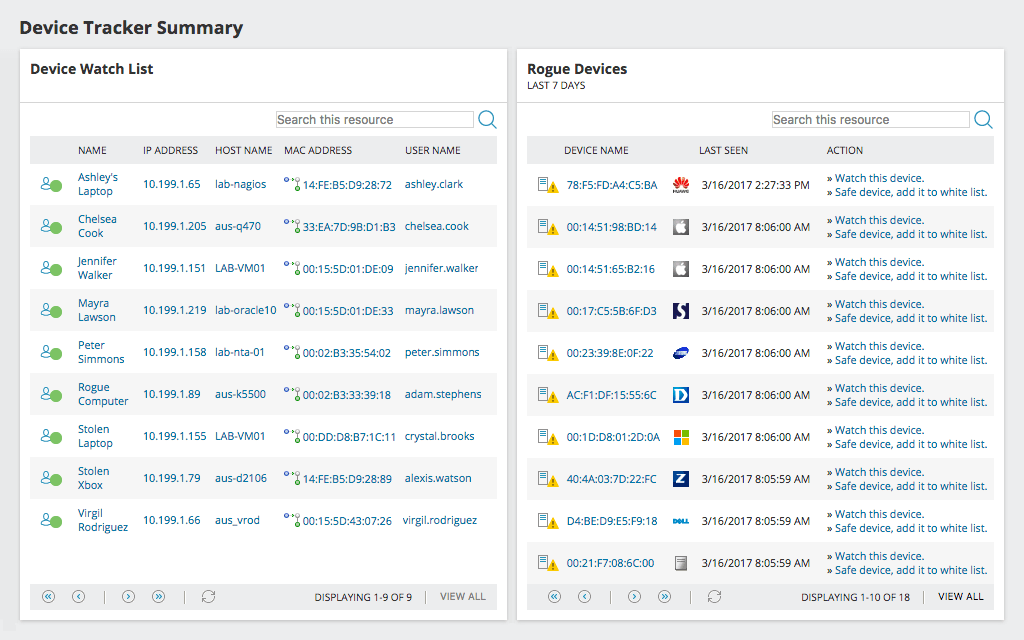
    • Rogue Devices: Lists all suspicious and unauthorized devices that have connected to your network. You can also manage your white list and create a watch list to locate these devices and elevate your wireless device tracking settings.
    • Device Watch List: To enable more targeted wireless device tracking, you can use this widget to create a list of usernames, hostnames, and IP or MAC addresses and quickly view real-time details for optimal endpoint tracking.

  • How can I gain more from using User Device Tracker?

    Aside from extensive wireless device tracking, UDT allows you to integrate SolarWinds IP Address Manager (IPAM) to unify existing endpoint lists and maintain end-to-end visibility on the most important devices for your network. If your IPAM instance is updated to version 4.3 or higher and your UDT instance runs at version 3.2, the two software platforms will automatically complete the integration process for you.

    For the best of both worlds, IPAM and UDT are available together in the IP Control Bundle, which allows you to drill down on port and user information, associated devices, connection histories, endpoint conflicts, and more via IP address. The IP Control Bundle also provides automatic alerting features and detailed logging capabilities, giving you the data you need to investigate and resolve IP conflicts. Protect your network from problematic devices through remote shutdown and port switches to keep your network running as it should.

How do I discover and add network devices to UDT?

To get started with wireless device tracking, you’ll need to create a network endpoint database. If you’re starting from scratch, use the SolarWinds Platform Discovery Wizard to enable the devices you want to monitor for SNMP and enable Windows devices for WMI. We recommend starting with a limited number of endpoints for the first discovery scan to make it easier to filter through devices you’ll want UDT to monitor automatically. To initiate a discovery scan and start your inventory database, follow these steps:

  1. Click Settings > Network Discovery > Add New Discovery > Start.
  2. Go to the Network panel and add a limited number of IP addresses. After your first scan, filter through devices using IP ranges, subnets, IP addresses, and Active Directory.
  3. To find ESX hosts and VMware vCenter, go to the Virtualization panel and check Poll for VMware, then Add vCenter or ESX Credential. Select <new credential> and input the prompted information.
  4. The Agents panel may appear if you opted for the Quality of Experience (QoE) agent while installing the SolarWinds Platform. If you’d like packet-level traffic monitoring, configure your agent settings here.
  5. On the Configuration panel, you can add SSH or Telnet credentials to perform backup and restoration processes.
  6. On the SNMP and Windows panels, add new credentials for WMI, RPC-enabled, and non-Windows devices.
  7. Select the manual setup option on the Monitoring Settings panel to review the list of found endpoints and choose the specific devices you want to monitor.
  8. To launch the discovery process, go to the Discovery Settings pane, click Next, and accept the default frequency.

If you already have another SolarWinds solution installed with a customized node database, simply go to Settings in UDT > All Settings > Manage Ports > Show Nodes. Filter to UDT Unmonitored Nodes, choose what nodes you want to track, and select Monitor Node with UDT to integrate your existing database.

Close
How does UDT support finding wireless endpoint connections?

UDT harnesses SSID filtering to help locate the wireless endpoints linked to your network. Head to the All Nodes list from the SolarWinds Platform Summary Dashboard, then click on the relevant SSID. Details about the selected device will be displayed.

From here, you can view Current Endpoint Connections and All Endpoint Connections. If the device you had in mind isn’t listed, you can search by hostname, MAC address, or IP address through these widgets. This way, no device is left out of your wireless tracking checklist.

Close
How can I enable DNS resolution for wireless nodes?

Tracing IP addresses to domain names becomes a breeze with UDT. Be advised UDT doesn’t have DNS resolution enabled by default, so you’ll have to configure this using the SolarWinds Platform Web Console. Click Settings > All Settings > Polling Settings. Find the Wireless tab, then input the value 1 in the Reverse DNS Timeout field. Select Submit and restart the entire console to activate the new setting.

Close
What kind of data does UDT provide?

For granular insight with an organized overview, UDT offers detailed widgets displaying critical information about all nodes and endpoint devices. This gives you complete control and visibility for all your wireless tracking needs. UDT updates you on everything you need to know about your network, including the following:

  • All UDT Nodes: Lists all the nodes with at least one device enabled for UDT monitoring. You can view the status of each node, its name, and the ports associated with the node for detailed endpoint tracking oversight.
  • Total Ports Currently Used: Displays a pie chart summary of the number and percentages of available and occupied ports.
  • Top 10 Nodes by Percent Ports Use: Shows the nodes with the most ports used, including the number of ports used and available.
  • Ethernet Ports Used Over Time: Allows you to see Ethernet port usage over a custom time period, over the last seven days, or over the last 30 days.
  • Last 25 Events: Informs you of each monitored device's top 25 most recent events. However, you can customize the number of events to your preference.
  • Rogue Devices: Lists all suspicious and unauthorized devices that have connected to your network. You can also manage your white list and create a watch list to locate these devices and elevate your wireless device tracking settings.
  • Device Watch List: To enable more targeted wireless device tracking, you can use this widget to create a list of usernames, hostnames, and IP or MAC addresses and quickly view real-time details for optimal endpoint tracking.

Close
How can I gain more from using User Device Tracker?

Aside from extensive wireless device tracking, UDT allows you to integrate SolarWinds IP Address Manager (IPAM) to unify existing endpoint lists and maintain end-to-end visibility on the most important devices for your network. If your IPAM instance is updated to version 4.3 or higher and your UDT instance runs at version 3.2, the two software platforms will automatically complete the integration process for you.

For the best of both worlds, IPAM and UDT are available together in the IP Control Bundle, which allows you to drill down on port and user information, associated devices, connection histories, endpoint conflicts, and more via IP address. The IP Control Bundle also provides automatic alerting features and detailed logging capabilities, giving you the data you need to investigate and resolve IP conflicts. Protect your network from problematic devices through remote shutdown and port switches to keep your network running as it should.

Close
"With User Device Tracker, [we] receive detailed metrics on switch port utilization, top access points by current endpoints, and top SSIDs."
Michael Low
Systems Engineer
Marina Bay Sands

Monitor wireless access points and endpoint devices

User Device Tracker

  • Quickly locate wireless endpoint devices on your network

  • Monitor wireless access points for faults, performance, and utilization

  • Maintain a comprehensive data log for all endpoint activity

Starts at {#Product Price#} UDT, an Orion module, is built on the SolarWinds Platform
Let’s talk it over.
Contact our team. Anytime.
{#Contact Phone#}
{{STATIC CONTENT}}
{{CAPTION_TITLE}}

{{CAPTION_CONTENT}}

{{TITLE}}