- Events
-
Partners
- Government
- Customer Portal
- Contact Us
- Contact Sales
-
English
SolarWinds® Access Rights Manager (ARM) is built to make it easy to identify shared folder permission status for resources across your domain. Gain an understanding of user authorizations and access permissions across folders, files, and services to help ensure you follow best practices for user access. You can easily view what users can access through Active Directory along with Exchange, SharePoint, and file servers.
Need to know what happened in your shared folders and files over time? Use SolarWinds ARM to track historical changes to Active Directory permissions. With AD monitoring, you can see the shared folder changes made in the past, when this access or modification occurred, and which users implemented specific changes.
Real-time, streamlined Active Directory folders and files permissions management makes it easier for admins to prevent potential security threats. Ineffective internal access controls can lead to data leaks and unauthorized modifications of sensitive data. With ARM, admins can quickly review shared folder permissions to identify gaps in security or compliance. You can also drill down into folder history or user accounts to access targeted insights into suspicious activity and unauthorized Active Directory file sharing.
Access Rights Manager also comes with built-in compliance reporting tools, so you can provide Active Directory file and folder permissions insights to demonstrate compliance. Leverage AD log activity to generate in-depth compliance reports for management and auditors. ARM is designed to help you adhere to industry regulations like HIPAA, PCI DSS, GDPR, and more. Customize reports with detailed information on user permission levels and access activity. You can even automate the creation of reports and their delivery schedule to help streamline the compliance process.
An Active Directory shared folder is a folder with its settings configured so that it can be viewed or changed by the appropriate users as needed. Understanding Active Directory shared folders and who has access to modify, edit, and delete their contents is important to control user activity and help ensure security for sensitive data.
Active Directory shared folder permissions can be controlled in several ways. Some common methods are to control user access at the folder level or to use Group Policies for a more efficient way to manage employee permissions.
To set the desired share permissions for a folder through Active Directory, admins can also create a new folder within an AD container, go to Properties and Sharing, and change Permissions. Using this method, admins are typically assigned default ownership of AD folders, as well as Read/Write permissions. For Sharing settings, it’s common to assign Everyone a Read or Read/Write status for a folder. Doing so also changes sharing permissions for any folders contained within the chosen folder. Objects with the same security requirements should be located within the same folder.
It’s important to note that Sharing and Security permissions are not the same. While Sharing permissions can give users the ability to access a folder (for either Read or Read/Write), Security permissions give users the right to make content changes to said shared folder. Admins will typically only want to give access permission to Domain Users or another restricted category, rather than Everyone. If access policies come into conflict, AD will grant access based on the more restrictive settings.
However, often the best person to manage shared folder access is the data owner—not an IT admin. Using SolarWinds ARM, IT admins can configure roles so that data owners can grant access rights to specific resources. Depending on the security needs of an organization, ARM allows you to delegate different roles and responsibilities related to data ownership based on configurable organizational categories. The categories can also be aligned to specific approval workflows that can include as many steps as required.
Those seeking access to shared resources from data owners will then use the web-based, self-service portal integrated in Access Rights Manager to make their request.
AD folder and file permissions are critical for allowing users to access the resources they need. Whether they need to be able to view specific files and folders or modify their contents, employees need streamlined access to the appropriate data. Active Directory is also important for facilitating data access not just from local machines, but for specific users logged in across a business network. When users can’t access the right resources, it isn’t just frustrating—it can impact business productivity.
Folder and file permissions sharing is also essential for helping ensure users can’t access or use resources they shouldn’t see. Reports suggest more than half of organizations had experienced an insider attack within the previous year. Excessive access privileges can create major security gaps, as employees may be able to misuse sensitive data. Controlling shared folder access through Active Directory is a key way for admins to protect their network from unauthorized misuse or data breaches.
In any organization, there comes a point when managing user-level permissions for each entity becomes difficult, especially as the number of shared files and folders starts to grow.
Beyond setting appropriate folder-level permissions, it’s good practice to control Active Directory folder permissions using groups and organizational units (OUs), as setting permissions for individual users on shared folders can easily become overwhelming and error-prone. Instead, it can be far more efficient to add users to groups and those groups into OUs to create more manageable categories of necessary permissions types.
It’s also important that admins always have a clear understanding of permissions settings for key folders, as well as insight into who has access to which folders. Using Access Rights Manager, you can quickly review any groups and the users contained within them to understand any potential opportunities to optimize access paths and the overall AD structure. With ARM, you can view all existing access paths in only a few clicks. Also, as group structures deepen, SolarWinds ARM is built to automatically identify recursions so you can break any issues with nested group structures to avoid excessive access rights and related security vulnerabilities.
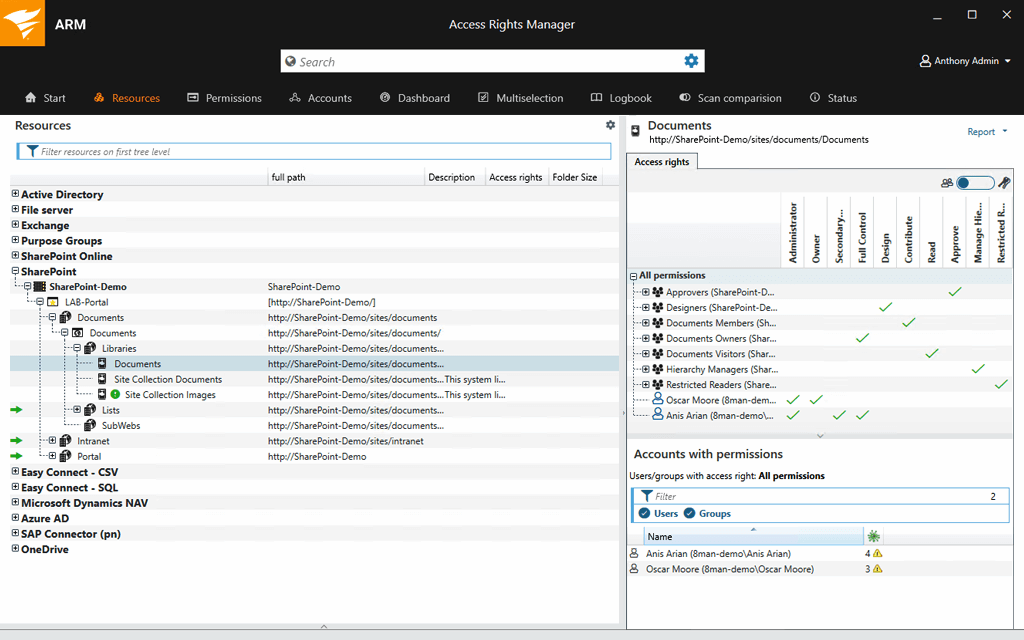
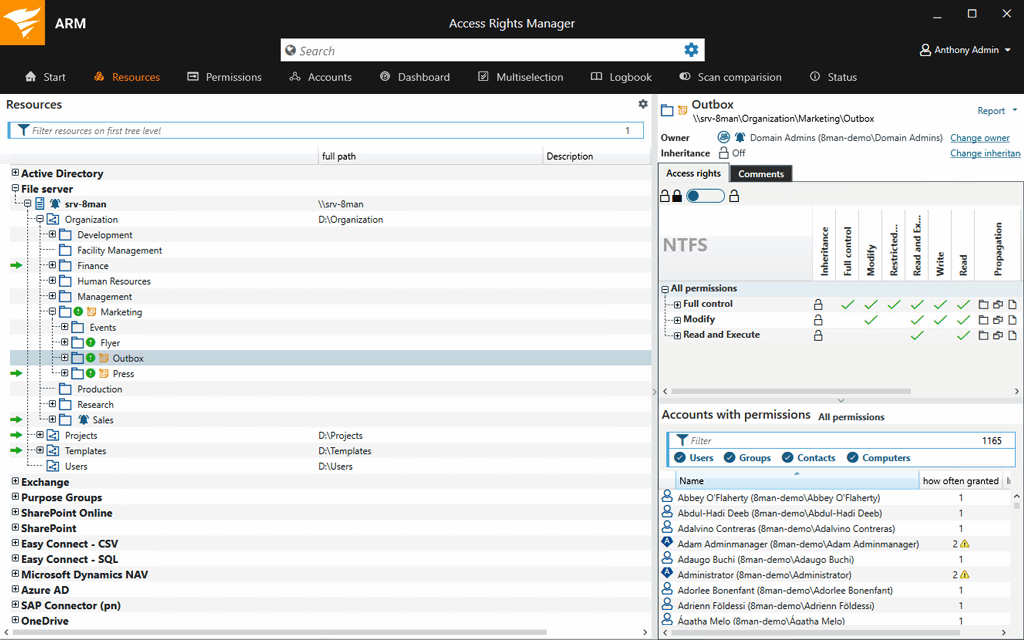
Access Rights Manager can help you quickly identify share permissions as well as NTFS permissions on shared directories. Within the ARM dashboard, select Resources and choose a shared folder. You will first see NTFS permissions across categories like inheritance, full control, modify, restricted, read, and write. Simply toggle the button to see Active Directory share permissions for the folder or file. Within ARM, you can also view folders with special protection, such as subdirectories with different access rights than their parent directory. You can quickly run reports to achieve full visibility into these disabled inheritance cases. Additionally, you can get a quick view of recent activities on directories or use the log book for a full report on past folder permissions changes.
An Active Directory shared folder is a folder with its settings configured so that it can be viewed or changed by the appropriate users as needed. Understanding Active Directory shared folders and who has access to modify, edit, and delete their contents is important to control user activity and help ensure security for sensitive data.
Active Directory shared folder permissions can be controlled in several ways. Some common methods are to control user access at the folder level or to use Group Policies for a more efficient way to manage employee permissions.
To set the desired share permissions for a folder through Active Directory, admins can also create a new folder within an AD container, go to Properties and Sharing, and change Permissions. Using this method, admins are typically assigned default ownership of AD folders, as well as Read/Write permissions. For Sharing settings, it’s common to assign Everyone a Read or Read/Write status for a folder. Doing so also changes sharing permissions for any folders contained within the chosen folder. Objects with the same security requirements should be located within the same folder.
It’s important to note that Sharing and Security permissions are not the same. While Sharing permissions can give users the ability to access a folder (for either Read or Read/Write), Security permissions give users the right to make content changes to said shared folder. Admins will typically only want to give access permission to Domain Users or another restricted category, rather than Everyone. If access policies come into conflict, AD will grant access based on the more restrictive settings.
However, often the best person to manage shared folder access is the data owner—not an IT admin. Using SolarWinds ARM, IT admins can configure roles so that data owners can grant access rights to specific resources. Depending on the security needs of an organization, ARM allows you to delegate different roles and responsibilities related to data ownership based on configurable organizational categories. The categories can also be aligned to specific approval workflows that can include as many steps as required.
Those seeking access to shared resources from data owners will then use the web-based, self-service portal integrated in Access Rights Manager to make their request.
AD folder and file permissions are critical for allowing users to access the resources they need. Whether they need to be able to view specific files and folders or modify their contents, employees need streamlined access to the appropriate data. Active Directory is also important for facilitating data access not just from local machines, but for specific users logged in across a business network. When users can’t access the right resources, it isn’t just frustrating—it can impact business productivity.
Folder and file permissions sharing is also essential for helping ensure users can’t access or use resources they shouldn’t see. Reports suggest more than half of organizations had experienced an insider attack within the previous year. Excessive access privileges can create major security gaps, as employees may be able to misuse sensitive data. Controlling shared folder access through Active Directory is a key way for admins to protect their network from unauthorized misuse or data breaches.
In any organization, there comes a point when managing user-level permissions for each entity becomes difficult, especially as the number of shared files and folders starts to grow.
Beyond setting appropriate folder-level permissions, it’s good practice to control Active Directory folder permissions using groups and organizational units (OUs), as setting permissions for individual users on shared folders can easily become overwhelming and error-prone. Instead, it can be far more efficient to add users to groups and those groups into OUs to create more manageable categories of necessary permissions types.
It’s also important that admins always have a clear understanding of permissions settings for key folders, as well as insight into who has access to which folders. Using Access Rights Manager, you can quickly review any groups and the users contained within them to understand any potential opportunities to optimize access paths and the overall AD structure. With ARM, you can view all existing access paths in only a few clicks. Also, as group structures deepen, SolarWinds ARM is built to automatically identify recursions so you can break any issues with nested group structures to avoid excessive access rights and related security vulnerabilities.
Access Rights Manager can help you quickly identify share permissions as well as NTFS permissions on shared directories. Within the ARM dashboard, select Resources and choose a shared folder. You will first see NTFS permissions across categories like inheritance, full control, modify, restricted, read, and write. Simply toggle the button to see Active Directory share permissions for the folder or file. Within ARM, you can also view folders with special protection, such as subdirectories with different access rights than their parent directory. You can quickly run reports to achieve full visibility into these disabled inheritance cases. Additionally, you can get a quick view of recent activities on directories or use the log book for a full report on past folder permissions changes.
Access Rights Manager
Get at-a-glance visibility into Active Directory and NTFS permissions
Improve data security by exercising control over Active Directory file sharing
Produce automated Active Directory reports to prove regulatory compliance